
PMS Permissions Guide
Adding PracMinders as a User in Your Practice Management Software (PMS)
Important Disclaimer – Please Read Carefully
The guidance on this page is provided for general informational purposes only. PracMinders does not take responsibility for any outcomes, errors, or omissions arising from following these instructions. See detailed guidance and legal notes at the bottom of this page.
When setting up a PracMinders contingency plan, there are two permission levels you can choose to grant within your Practice Management Software (PMS):
Baseline Permissions: the minimum access we need to deliver Practice Suspension Support, Practice Transition Support, and (for Core Plus only) Flexible Absence Management.
Baseline + Export Permissions (recommended): includes Baseline Permissions, plus additional reporting and export functions that support a future Legacy Plan (record custodianship), if you or your legal estate ever choose to enter into one.
PracMinders will not use export or custodianship functions under Core or Core Plus. However, enabling Baseline + Export Permissions upfront can allow record custodianship to be requested later without delays or access changes at a critical time.
We also strongly recommend that you leave a copy of your PMS account owner credentials (or a secure method to access them) with your legal estate or in your will. As the account owner, you typically hold full access, and there may be situations where this is required if you are unable to manage your PMS yourself.
Finally, if your PMS is subscription-based, consider what happens if fees can’t be paid while you’re unavailable. A subscription may lapse, which can restrict access at the exact time urgent actions are needed. Your PMS may also require paid-for credits to access features such as sending SMS or faxes. Ensuring your legal representative can access the account means they can keep the service active long enough for required actions to be completed, or contact the PMS provider to request an extension.
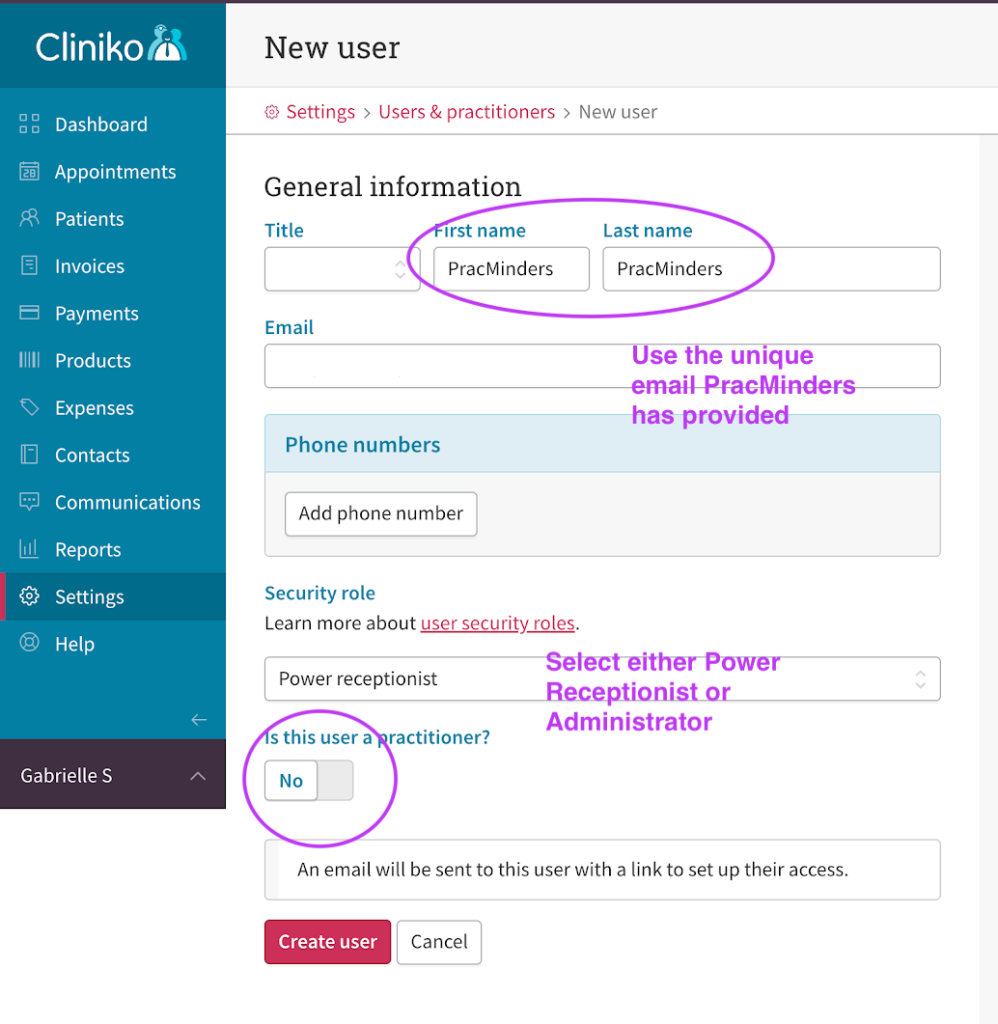
Below you’ll find step-by-step instructions on how to invite PracMinders into your PMS and assign the access permissions required. PracMinders currently supports Cliniko, Halaxy, Splose and Zanda.
Cliniko
Cliniko offers a built-in role called Power Receptionist. This role is often suitable for routine administrative tasks, but it does not provide several functions that PracMinders may need to carry out under the Core or Core Plus Plans. In particular, Power Receptionist access may not allow us to:
- access Cliniko subscription or billing settings
- generate practice revenue reports
- send bulk SMS or bulk email notices to patients (for example, during Practice Suspension Support)
For this reason, if you choose to grant PracMinders the Power Receptionist role, it is important to understand that we may not be able to complete some actions within Practice Transition Support (such as preparing financial or revenue reports) or send notices to all patients at once when required. If practice-wide notifications are required and PracMinders has Power Receptionist access only, we may need to send communications on a patient-by-patient basis. Additional charges may apply. See the Fee Schedule.
The Administrator role does allow these functions and will provide the access needed for PracMinders to deliver the Core and Core Plus Plans. Please note that Administrator is a high-privilege role in Cliniko and provides broad access to Cliniko’s administrative features, including subscription settings, reporting, bulk communications, and exports.
If you choose to grant PracMinders Power Receptionist access only, we strongly recommend that you leave secure access details for your Cliniko account with your legal estate (or via your will), including:
• your username/email and password, and
• access to any devices or authentication methods required for multi-factor authentication.
This ensures that if broader permissions are required, you (or your legal estate) can expand or change access (for example, to Administrator) so that PracMinders can complete the necessary actions.
Planning ahead: If you are considering a Legacy Plan for record custodianship in the future (which may be entered into by you or your legal estate), PracMinders may require the ability to export data and access reporting functions in Cliniko as part of record custodianship workflows. The Administrator role provides this access.
For more information on user permissions in Cliniko, see Managing user settings.
Halaxy
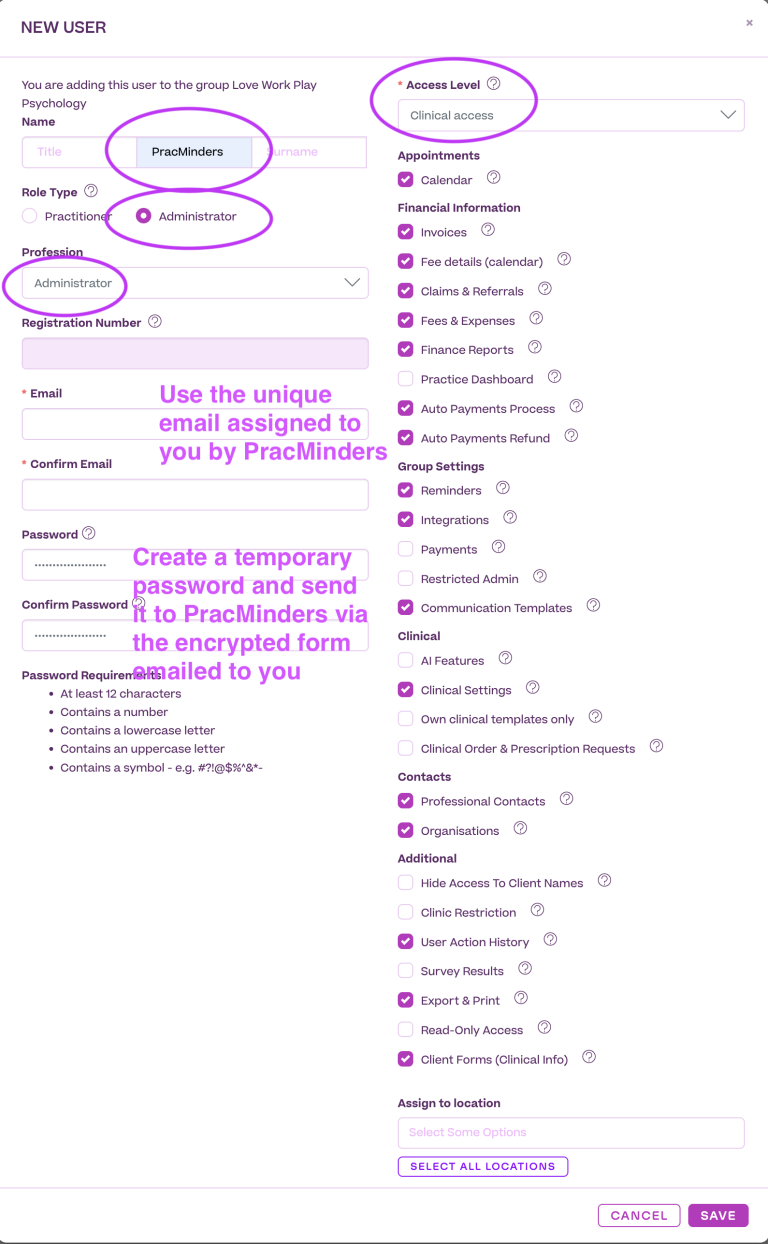
To add PracMinders as a user:
- Create a new user named PracMinders
- Set Role type to Administrator
- Set Profession to Administrator
- Use the unique email address PracMinders has provided
- Create a temporary password, then use the secure form emailed to you to provide it to PracMinders
- Set Access Level to Clinical Access
- Make the selections shown in the following image
For guidance on user management, see Manage Access Settings in Halaxy.
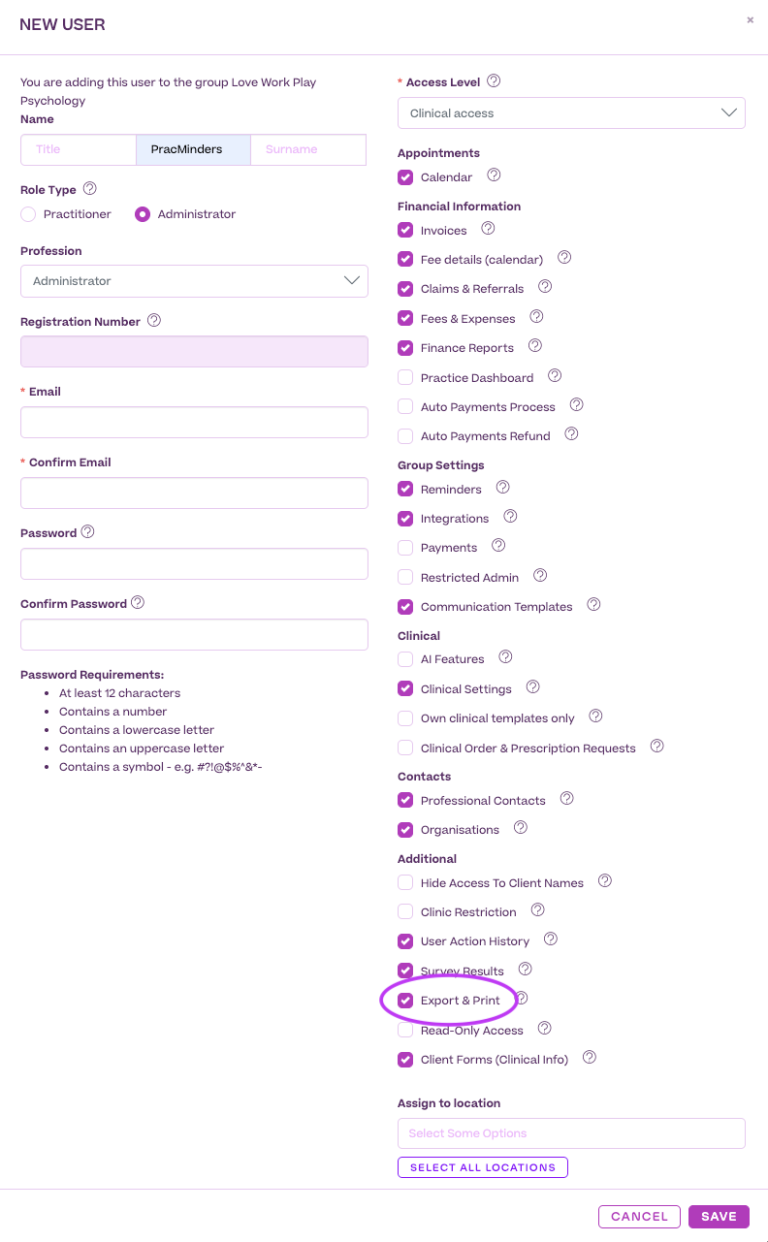
In case you are considering a Legacy Plan in the future (which may be entered into by you or your legal estate), PracMinders may require the ability to complete a bulk export of your records. In Halaxy, bulk export can only be performed by the Practice Owner.
For this reason, it is important that you leave secure access details for the Practice Owner account with your legal estate (or via your will), including:
- your username/email and password, and
- access to any multi-factor authentication method required to log in.
In the meantime, you may also choose to grant PracMinders any available export-related permissions within Halaxy. While these do not enable bulk export, they may still be helpful for retrieving information if needed and for supporting a smoother transition if record custodianship is later required. This can be done by also enabling the feature circled in the following image.
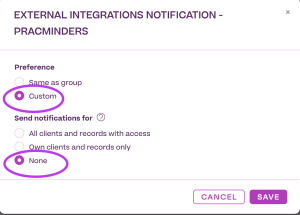
Next you need to disable Notifications for PracMinders.
Go to Settings > Notifications > Notification Settings.
For each notification type, go to the edit function and select “Custom” and “None”, as per the image below.
When you have finished, each Notification Type should read “None” as the image below shows.
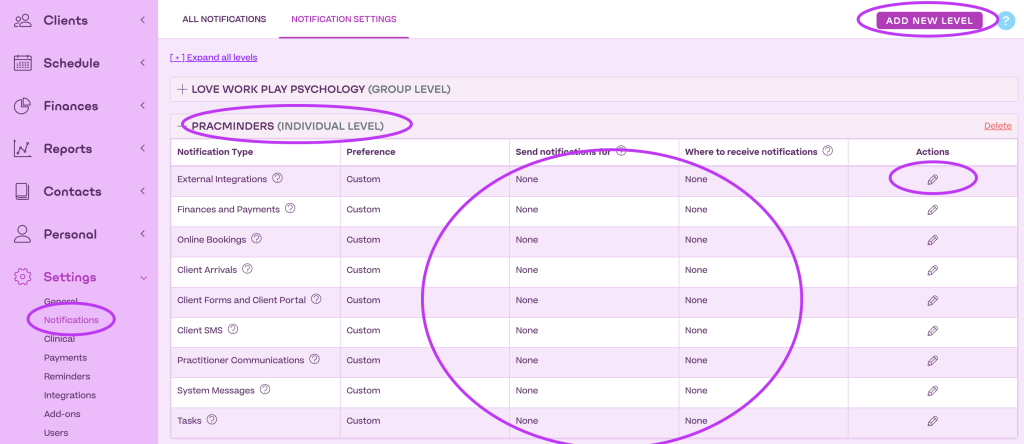
If you use the Halaxy Patient Portal, you may need to disable notifications being sent to PracMinders.
More broadly, you are responsible for ensuring that your practice management system, patient portal, and related settings are configured so that unnecessary notifications are not sent to PracMinders.
PracSuite
PracSuite requires that a Role be set up initially, and then a User can be assigned to that Role.
For guidance on setting up a Role in PracSuite, see Creating Roles.
For guidance on setting up a Role in PracSuite, see Setting Up a PracSuite User Account.
- Setting up a Role
Go to Settings > Users & Security > Roles - Click Add to add a new Role.
- Give the Role the name, PracMinders
- Toggle on / off the features that this role will require access to. Some areas allow you to choose between No Access, Read Only access, and Full Editing/Deleting Access as well. These can be changed by dragging the slider to the preferred setting.
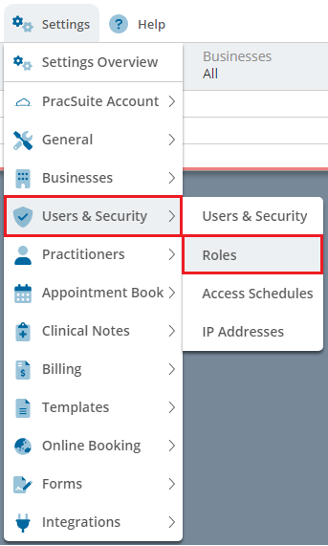
We recommend making the following selections:
General
i. Send SMS
ii. Send Email
Patients
i. Audit Log
ii. Show Patient Address
iii. Show Patient Phone Numbers
iv. Show Patient Email
v. Show Patient Account Balances
Patient Areas: Edit access for the following:
i. Patient Details
ii. Accounts
iii. Medicare/DVA
iv. Appointments
v. Messages
vi. Contacts
vii. Files * (please see below under Clinical Notes)
Appointment Book
i. Add/Edit Notes
ii. Edit access for
– Appointments
– Day Notes
– Waiting List
– Practitioner Queue
Invoices
i. View
Contact: Edit for
i. Referrers & Organisations
ii. Third-Party Payer
Clinical Notes
In case you are considering a Legacy Plan in the future (which may be entered into by you or your legal estate), PracMinders may require the ability to access a bulk export of your records. In PracSuite, bulk export can only be performed by PracSuite following verification of authority to access the records.
For this reason, it is important that you leave secure access details for the system administrator account with your legal estate (or via your will), including:
- your username/email and password, and
- access to any multi-factor authentication method required to log in.
In the meantime, you may also choose to grant PracMinders any available export-related permissions within PracSuite. While these do not enable bulk export, they may still be helpful for retrieving information if needed and for supporting a smoother transition if record custodianship is later required. This can be done by also enabling the following features under Clinical Notes:
- View Notes
- Create Notes
- Copy Note
*If you choose to grant PracMinders access to these fields, we also recommend provided access to
Patients File Access > Files
6. Click Save to finalise your changes.
7. You can now assign this Role to new and existing users on their user accounts in the Settings > Users & Security menu.
Setting up a User
1. Go to Settings > Users & Security > Users & Security
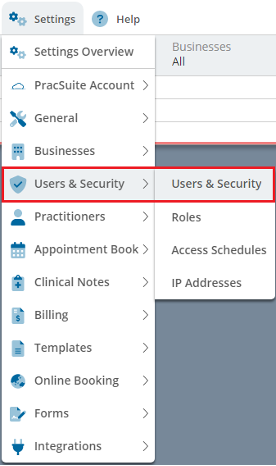
2. Click Add to begin the process
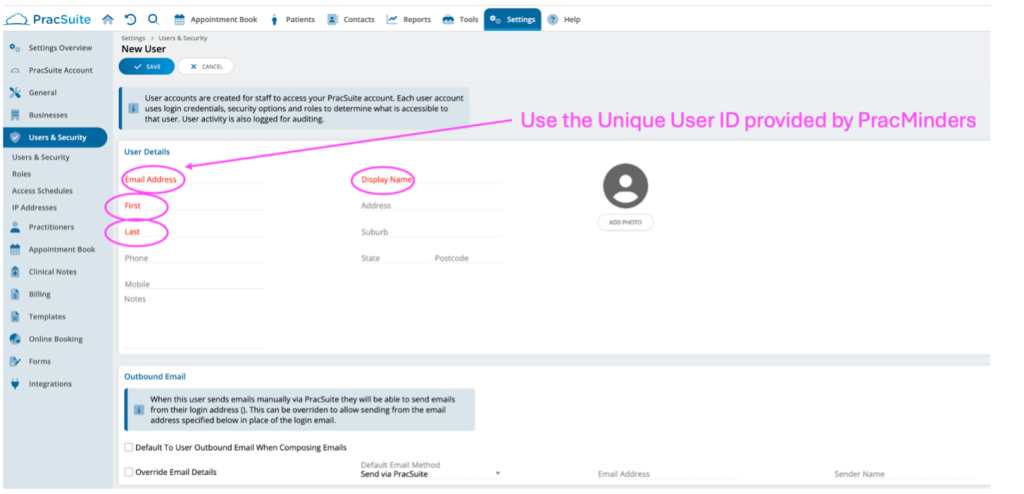
3. Enter the User’s details
The email address is the unqiue address above.
Please use PracMinders as the Display Name, and First and Last Names.
4. Assign a Role to the User.
This is the Role created above, PracMinders
5. Where your practice includes multiple practitioners or businesses, please limit PracMinders’ access to only those practitioners or businesses covered by your selected PracMinders plan.
6. Data Access. PracSuite has three general categories of data that you can restrict a User from accessing. Please select access to:
- General & Appointment Book
- Reports
7. Click Save to finalise your changes.
Splose
Set up a dedicated user profile for PracMinders with a Practice Manager access level. For more information on user permissions in Splose, see Set up user permissions and roles.
Before inviting PracMinders, you must first create a role. Go to Team, then select Permissions & Roles, and create a new role. We recommend naming the role “PracMinders Contingency Support” and setting the Role Type to Practice Manager.
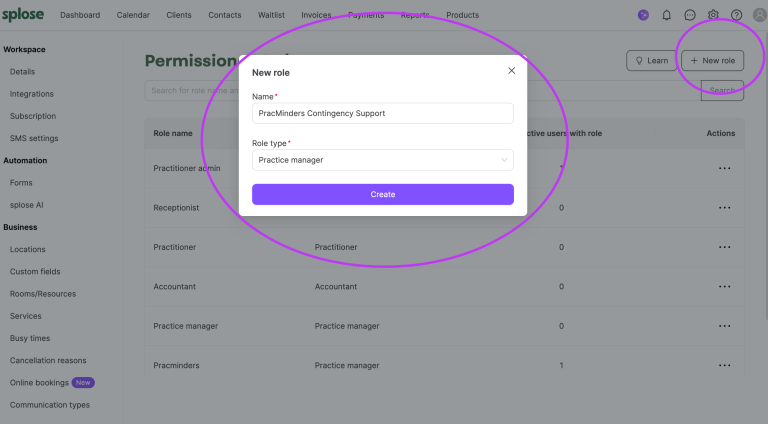
At a minimum, configure access permissions for the PracMinders Contingency Support role as set out below. This uses the default Practice Manager settings, plus one additional custom permission for Letters (circled).
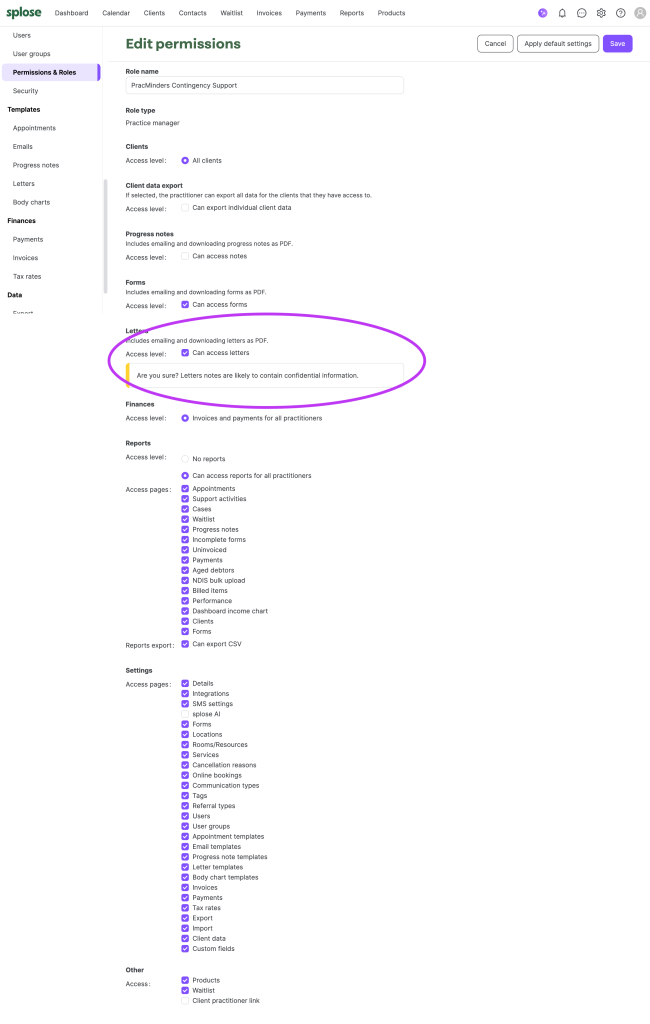
In case you are considering a Legacy Plan in the future (which may be entered into by you or your legal estate), PracMinders may require the ability to complete a bulk export of your records. In Splose, bulk export permissions may be limited to the account owner.
For this reason, it is important that you leave secure access details for the account owner login with your legal estate (or via your will), including:
- your username/email and password, and
- access to any multi-factor authentication method required to log in.
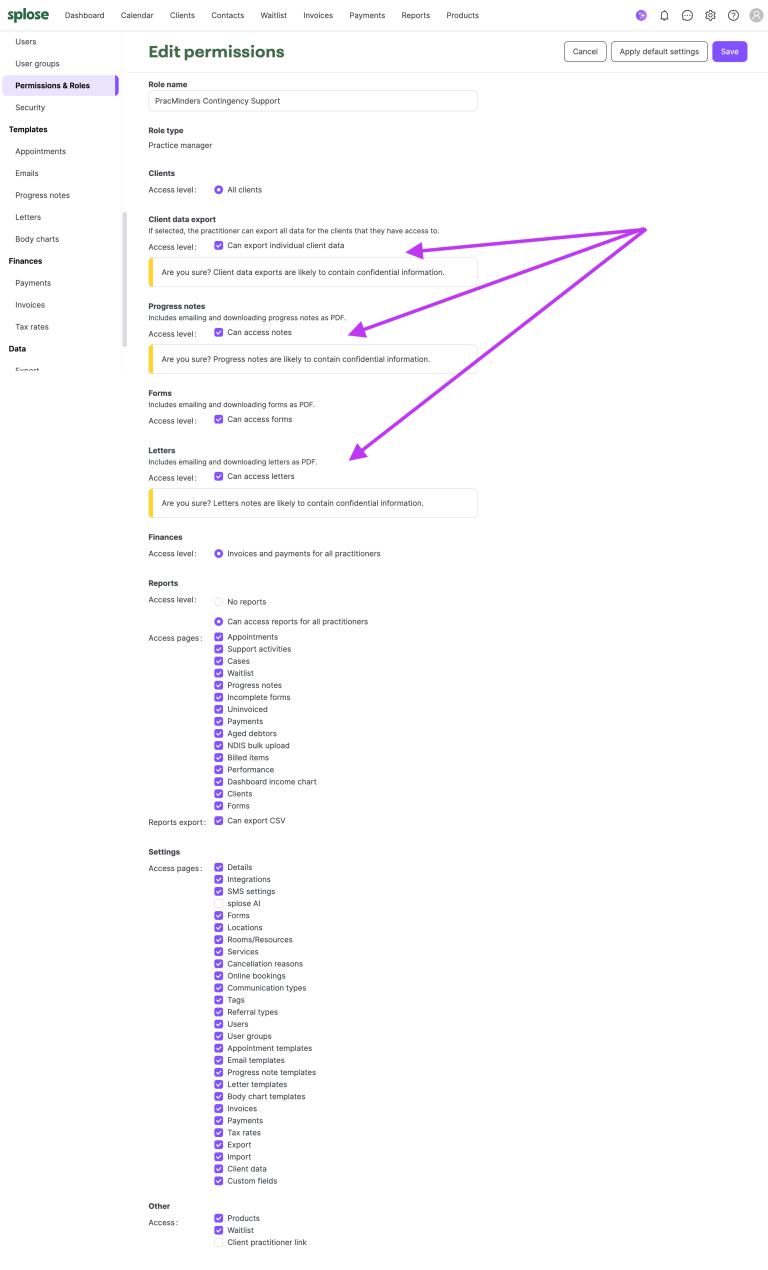
In the meantime, you may also choose to grant PracMinders any available export-related permissions within Splose. While these may not enable bulk export, they may still be helpful for retrieving information if needed and for supporting a smoother transition if record custodianship is later required. This can be done by enabling the features indicated by arrows in the image below.
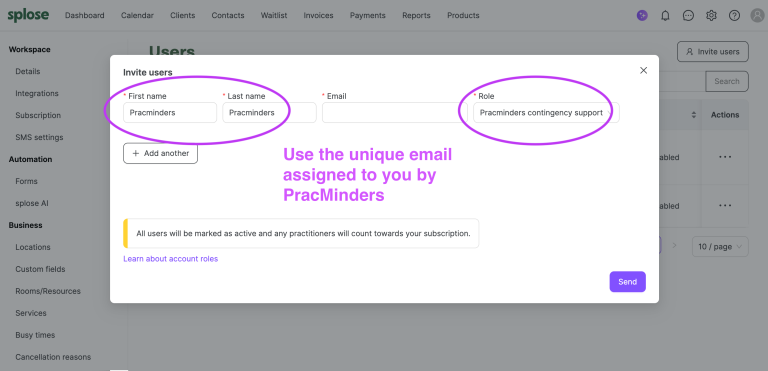
Next, invite PracMinders as a user in your PMS. Go to Users and click Invite Users. Set the First Name and Last Name to PracMinders, then select the “PracMinders Contingency Support” role you created.
Zanda
Set up a dedicated user profile for PracMinders with an Administrative access level. For more information on user permissions in Zanda, see Managing Users and User Permissions for Reception/Admin Staff.
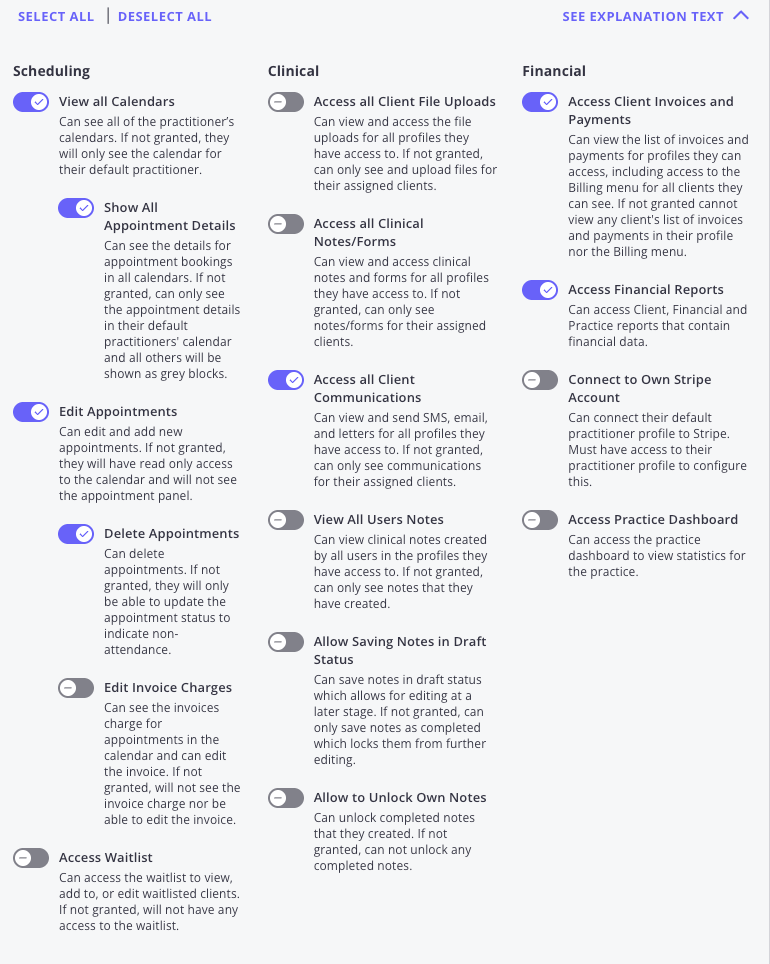
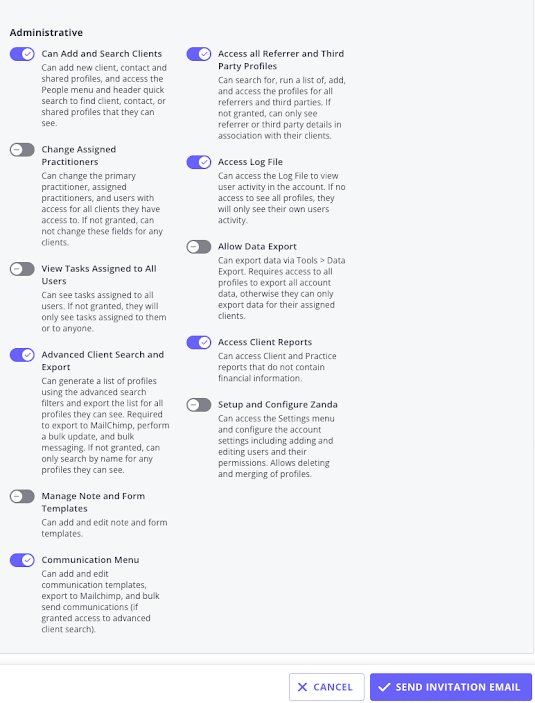
In the next image are the permissions set aligned to the functions PracMinders may need to perform.
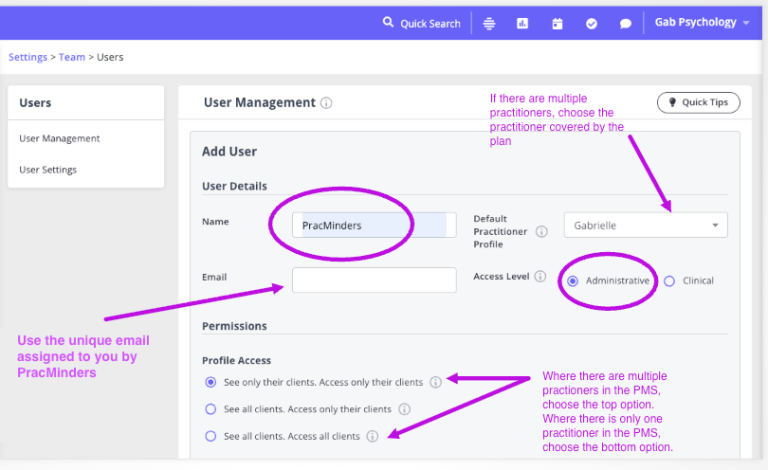
To add PracMinders as a user:
- Create a new user named PracMinders
- Use the unique email address PracMinders has provided
- Select the Administrative user type
- If you are a practitioner in a group practice, select your name and limit access to your files only.
At a minimum, configure access permissions as set out below.
In case you are considering a Legacy Plan in the future (which may be entered into by you or your legal estate), PracMinders may require the ability to complete a bulk export of your records. In Zanda, bulk export permissions may be limited to the account owner.
For this reason, it is important that you leave secure access details for the account owner login with your legal estate (or via your will), including:
• your username/email and password, and
• access to any multi-factor authentication method required to log in.
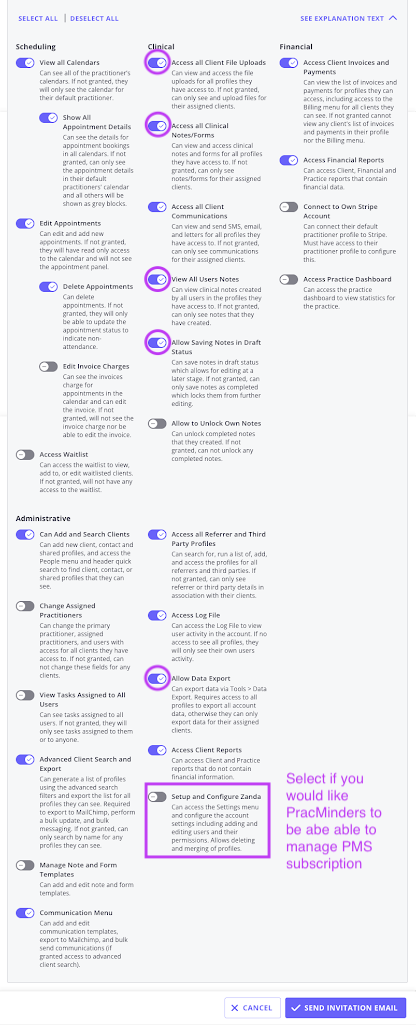
In the meantime, you may also choose to grant PracMinders any available export-related permissions within Zanda. While these may not enable bulk export, they may still be helpful for retrieving information if needed and for supporting a smoother transition if record custodianship is later required. This can be done by enabling the features circled in the following image.
You may also wish to note that if the practice owner is unavailable and a subscription fee becomes overdue, a user with “Setup and configure Zanda” permissions can update the credit card on file to process payment.
Additional disclaimer notes
Professional responsibility remains yours
- Granting PracMinders access does not transfer your legal, ethical, or professional obligations regarding client privacy, clinical records, or practice management.
- You remain responsible for ensuring the access you grant is appropriate for your practice, your jurisdiction, and applicable privacy laws.
Check your settings, including notifications
- PMS features, workflows and permission settings may change over time. Before assigning roles or permissions, you should confirm the current settings in your PMS and ensure they reflect the purpose of your contingency plan.
- You should also review user notification settings (including email, SMS and patient portal notifications) to ensure PracMinders does not receive patient information outside the PMS. PracMinders users should be able to view information within the PMS when logged in, but should not receive client notifications or client content via email, SMS, or other external channels.
Use of export functions
- Baseline + Export permissions may enable reporting and record export functions that could support a future Legacy Plan.
- PracMinders will not use export or record custodianship functions unless a Legacy Plan has been entered into and the relevant actions have been requested.
- Any use of export or record custodianship functions must be undertaken in a way that is consistent with applicable legal, ethical and privacy obligations.
Account ownership and access
- You should maintain secure access to your PMS credentials.
- You may wish to store your credentials, or a secure access method, with your legal estate or via your will to support continuity if you are unavailable.
- If your PMS is subscription-based, access may be restricted if fees are unpaid. Maintaining account control (including billing continuity) remains your responsibility.
General guidance only
- This guide is provided for general information only. It is not legal, clinical, financial, or technical advice.
- PracMinders is not responsible for technical issues, privacy breaches, or operational errors arising from the configuration or use of your PMS.